Modern Unix Tools
The Unix command line has a core set of tools that have been around for decades — grep, find, ls, cat, top, curl. They work. But the ecosystem has produced a generation of replacements that are significantly faster, more readable, and developer-friendly. Most are drop-in replacements: same concept, better experience.
This post covers the most useful ones grouped by category, why they are faster than their predecessors, when to reach for them, and a deep dive into three that fundamentally change how you navigate and search.
Drop-in Replacements
File and Search
| Old | New | Install | What changes |
|---|---|---|---|
find |
fd |
brew install fd |
5× faster, respects .gitignore, simpler syntax, coloured output |
grep |
ripgrep (rg) |
brew install ripgrep |
10–100× faster, respects .gitignore, recursive by default |
sed |
sd |
brew install sd |
Standard regex instead of POSIX quirks, no escaping needed |
awk |
frawk |
brew install frawk |
2–10× faster, mostly compatible, better UTF-8 support |
diff |
delta |
brew install git-delta |
Syntax-highlighted diffs, side-by-side view, line numbers |
locate |
plocate |
brew install plocate |
Much faster index format |
File Listing and Navigation
| Old | New | Install | What changes |
|---|---|---|---|
ls |
eza |
brew install eza |
Colours, icons, git status, tree view |
tree |
broot |
brew install broot |
Interactive tree, fuzzy search, open files directly |
cd |
zoxide |
brew install zoxide |
Learns your habits, jump by partial name |
du |
dust |
brew install dust |
Visual bar chart of disk usage, sorted by size |
df |
duf |
brew install duf |
Coloured grouped disk usage with usage bars |
cat / less |
bat |
brew install bat |
Syntax highlighting, line numbers, git change markers |
hexdump |
hexyl |
brew install hexyl |
Colourful hex viewer, highlights byte types |
System and Process
| Old | New | Install | What changes |
|---|---|---|---|
top |
btop |
brew install btop |
Beautiful TUI, mouse support, CPU/memory/network graphs |
top |
htop |
brew install htop |
Interactive process viewer, tree view, easier to kill processes |
ps |
procs |
brew install procs |
Colourful output, tree view, shows Docker containers |
kill |
fkill |
npm install -g fkill-cli |
Fuzzy search processes to kill, interactive selection |
watch |
viddy |
brew install viddy |
Diff highlighting between runs, shows what changed |
time |
hyperfine |
brew install hyperfine |
Statistical benchmarking, mean/min/max/stddev |
cron |
supercronic |
brew install supercronic |
Human-readable schedules, better logging, Docker-friendly |
Network
| Old | New | Install | What changes |
|---|---|---|---|
curl |
httpie |
brew install httpie |
Human-friendly HTTP client, coloured JSON, simple REST syntax |
curl |
curlie |
brew install curlie |
curl frontend with httpie-style output, fully curl-compatible |
wget |
aria2 |
brew install aria2 |
Multi-connection downloads, torrent support |
ping |
gping |
brew install gping |
Real-time latency graph, ping multiple hosts simultaneously |
traceroute |
mtr |
brew install mtr |
Combines ping and traceroute, real-time, shows packet loss per hop |
nmap |
rustscan |
brew install rustscan |
3000× faster, scans all ports in seconds, passes results to nmap |
netstat |
bandwhich |
brew install bandwhich |
Bandwidth per process and connection |
dig |
dog |
brew install dog |
Colourful DNS lookup, supports DNS over HTTPS and TLS |
ssh |
mosh |
brew install mosh |
Works over unstable connections, no freezing on packet loss |
Text Processing
| Old | New | Install | What changes |
|---|---|---|---|
cut |
choose |
brew install choose-rust |
Simpler syntax, no -d and -f flags to remember |
wc |
tokei |
brew install tokei |
Counts lines per language, code vs comments vs blank |
head / tail |
bat |
brew install bat |
bat --line-range handles both with syntax highlighting |
column |
csvkit |
brew install csvkit |
Full CSV toolkit, query with SQL, convert formats |
jq |
fx |
brew install fx |
Interactive JSON viewer, browse with keyboard |
| xml tools | xq |
brew install xq |
Query XML/HTML with CSS selectors or XPath |
| yaml tools | yq |
brew install yq |
Query and edit YAML/JSON/XML/CSV, jq-compatible syntax |
Git
| Old | New | Install | What changes |
|---|---|---|---|
git log |
tig |
brew install tig |
Interactive ncurses log browser, stage hunks, search commits |
git diff |
delta |
brew install git-delta |
Syntax-highlighted diffs, side-by-side, word-level highlighting |
git |
lazygit |
brew install lazygit |
Full TUI, stage hunks, resolve conflicts, manage branches visually |
git |
gitui |
brew install gitui |
Rust git TUI, keyboard-driven, very responsive in large repos |
Terminal and Shell
| Old | New | Install | What changes |
|---|---|---|---|
bash |
zsh / fish |
brew install fish |
fish has autosuggestions, syntax highlighting, better completions |
tmux / screen |
zellij |
brew install zellij |
Better UI, mouse support built-in, layouts via config |
history |
mcfly |
brew install mcfly |
Neural network powered history search, learns from context |
man |
tldr |
brew install tldr |
Simplified pages with practical examples |
man |
cheat |
brew install cheat |
Community cheatsheets, create your own |
echo |
gum |
brew install gum |
Beautiful shell script UI: spinners, prompts, styled output |
xargs |
parallel |
brew install parallel |
Run commands in parallel, much faster for batch operations |
Development
| Old | New | Install | What changes |
|---|---|---|---|
make |
just |
brew install just |
No tab quirks, better errors, recipe arguments |
vim |
neovim |
brew install neovim |
Lua config, built-in LSP, async plugins |
ctags |
universal-ctags |
brew install universal-ctags |
150+ languages, maintained fork |
strace |
lurk |
cargo install lurk |
Rust rewrite, colourful output, easier syscall reading |
Why Are They Faster
The performance gap is not just marketing. The new tools are faster for concrete algorithmic and implementation reasons.
Written in Rust or Go
Most of the new generation is written in Rust (ripgrep, fd, dust, gitui, hexyl, lurk) or Go (fzf, dog). Both compile to native binaries with no runtime overhead. The older tools are C programs — which is fast — but they were written before modern CPU architectures and were not designed to exploit them.
SIMD and Vectorised Search
ripgrep uses SIMD (Single Instruction Multiple Data) CPU instructions via the memchr library to search multiple bytes simultaneously in a single CPU instruction. Where grep examines one byte at a time, rg can scan 16–32 bytes per instruction on modern hardware. For large files this compounds quickly.
ripgrep also uses finite automata via the regex crate — it compiles your pattern into a deterministic finite automaton (DFA) and runs it against the input, which avoids backtracking entirely. POSIX grep can backtrack on complex patterns, which degrades to O(n²) in the worst case.
Parallel Directory Traversal
fd and ripgrep both use the ignore crate which walks the directory tree in parallel across multiple threads. find and grep -r are single-threaded — one directory at a time. On a machine with 8+ cores, parallel traversal of a large codebase (node_modules, a monorepo) is significantly faster.
Skipping What Doesn’t Matter
Both fd and ripgrep respect .gitignore, .ignore, and hidden file rules by default. They skip node_modules, target/, .git/, and build artefacts without being told to. find and grep walk into all of these unless you explicitly exclude them with flags. On a Node.js project, node_modules alone can contain hundreds of thousands of files — skipping it is a large win.
Memory-Mapped I/O
ripgrep uses memory-mapped files for large inputs. Instead of reading a file into a buffer and then scanning the buffer, the OS maps the file directly into the process’s address space and the CPU prefetcher handles loading pages as the search progresses. This reduces system call overhead and allows the kernel’s readahead logic to work more efficiently.
When to Use New vs Old
The modern tools win in most interactive developer workflows. But the old tools still have their place.
| Scenario | Use new | Use old |
|---|---|---|
| Searching a large codebase | rg — fast, gitignore-aware |
— |
| Searching a single small file | either | grep is fine |
| Portable shell scripts (CI, Docker) | — | grep, find, sed — always available |
| Finding files by name in a project | fd |
— |
| Finding files on a system without install access | — | find |
| Disk usage investigation | dust — visual, sorted |
— |
Precise du output for scripting |
— | du with flags |
| Monitoring system resources interactively | btop |
— |
| Scripting process output | — | ps, top -b |
| REST API testing interactively | httpie |
— |
| Complex curl with auth, custom headers | curlie or curl |
curl for full control |
| Git log browsing interactively | tig or lazygit |
— |
| Git scripting and automation | — | git CLI |
The safest rule: use the modern tool interactively, use the classic tool in scripts that need to be portable.
Deep Dive: ripgrep, fzf, and zoxide
These three tools compose together into a workflow that replaces most of the time spent navigating and searching at the terminal.
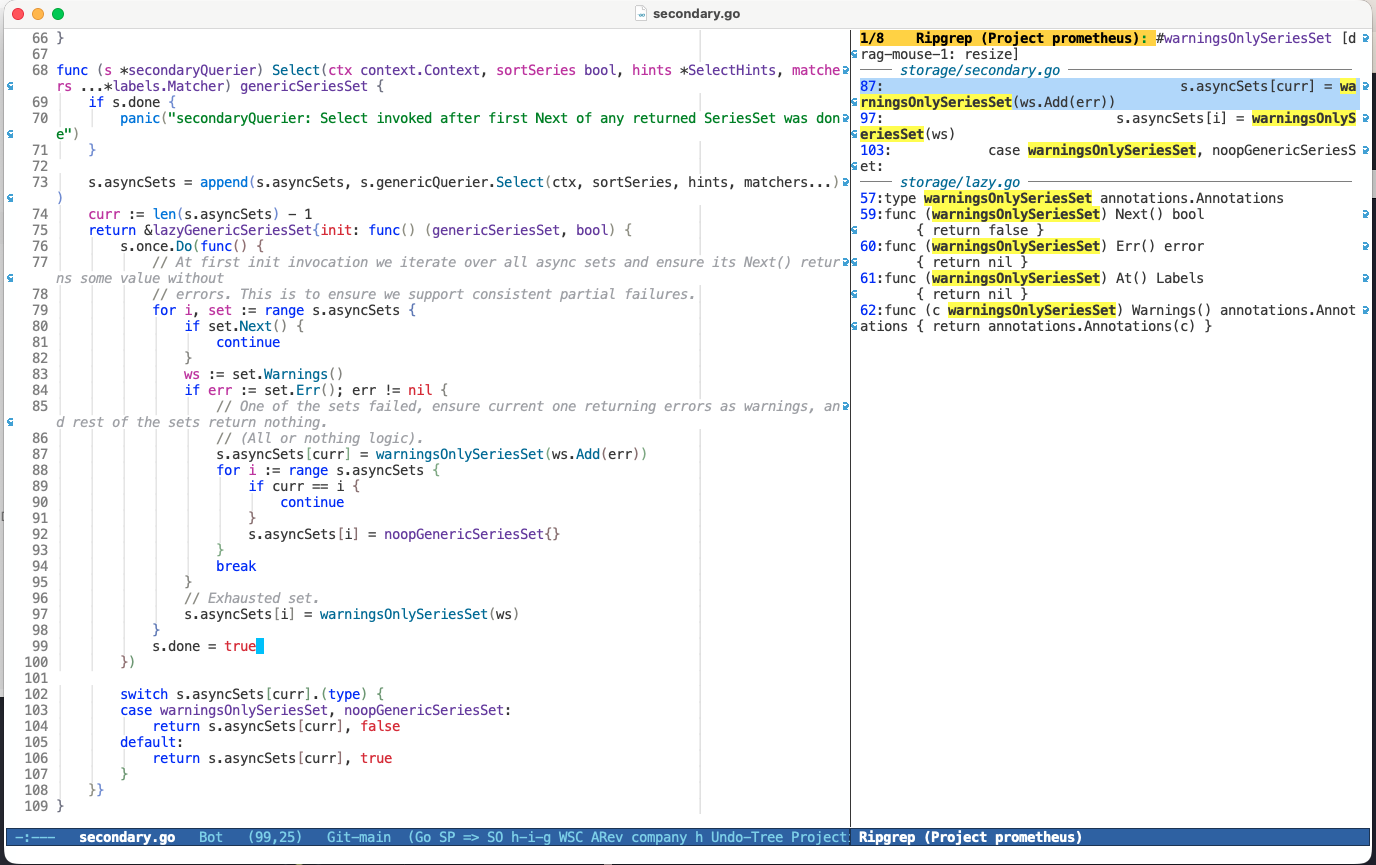
ripgrep
ripgrep (rg) is a line-oriented search tool built in Rust. It recursively searches for a regex pattern and is the fastest code-searching tool widely available.
rg "function main"            # find pattern in all files
rg "TODO" --type go           # search only Go files
rg "import" src/              # search a specific folder
rg -l "TODO"                  # list matching files, not lines
rg -i "error" --type rust     # case-insensitive in Rust files
Use over grep when: searching a codebase, a project directory, or anywhere you want gitignore filtering. For a single file, grep is fine.
fzf
fzf (Fuzzy Finder) is a general-purpose command-line fuzzy finder written in Go. It reads any list from stdin, lets you filter it interactively, and outputs the selection. The key insight: it works on anything.
# Shell keybindings (after eval "$(fzf --zsh)")
Ctrl+T    # fuzzy find files to insert into current command
Ctrl+R    # fuzzy search command history
Alt+C     # fuzzy cd into a directory

# Pipe anything into fzf
ls | fzf                      # fuzzy select from ls
git branch | fzf              # fuzzy select a branch
docker ps | fzf               # fuzzy select a container
Use over manual tab completion when: the list is long, the name is partially remembered, or you are selecting from command output.
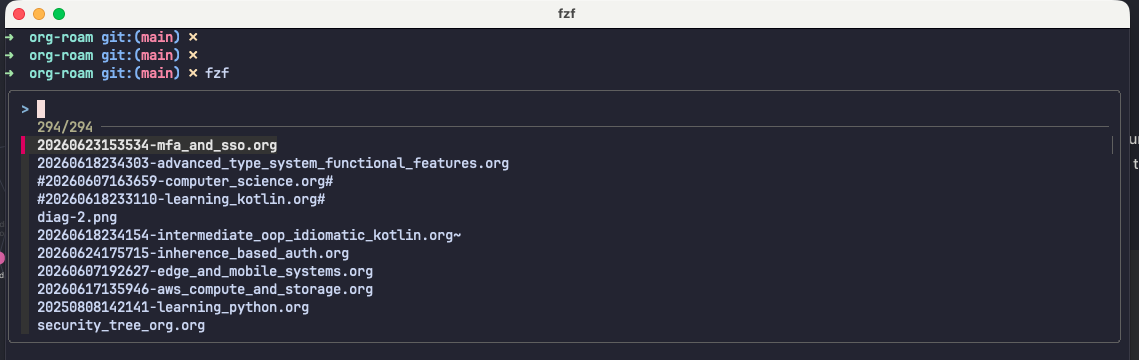
fzf here fuzzy-finding across 294 org-roam notes — filtered in real time as you type.
zoxide
zoxide replaces cd by remembering the directories you visit. Jump to any directory with a few letters of its name from anywhere on the filesystem.
z proj          # jump to the most-visited dir matching "proj"
z doc sha       # jump to Documents/share
zi              # interactive fuzzy directory picker
z -             # go back to previous directory
Use over cd when: you visit a directory more than once. After a few days of use, navigating the filesystem becomes close to instant.
How They Work Together
z proj                        # jump to project (zoxide)
rg "bug fix" --type rs        # search inside Rust files (ripgrep)
Ctrl+T                        # fuzzy find a file to open (fzf)
Ctrl+R                        # find a previous command (fzf)
fzf using ripgrep as its file source — file search now respects .gitignore and is much faster:
export FZF_DEFAULT_COMMAND='rg --files --hidden --follow --glob "!.git"'
export FZF_CTRL_T_COMMAND="$FZF_DEFAULT_COMMAND"
~/.zshrc Setup
# fzf
eval "$(fzf --zsh)"
export FZF_DEFAULT_COMMAND='rg --files --hidden --follow --glob "!.git"'
export FZF_DEFAULT_OPTS='--height 40% --layout=reverse --border'
export FZF_CTRL_T_COMMAND="$FZF_DEFAULT_COMMAND"

# zoxide
eval "$(zoxide init zsh)"
alias cd='z'
alias cdi='zi'
Real Use: Finding What Was Eating My Disk
My MacBook Pro has around 465 GB of storage. At some point the available space dropped to a few gigabytes and the usual suspects — Downloads, Documents — were not the cause.
Running dust from the home directory with the -p flag (full paths) made the problem immediately obvious:
dust -p ~
dust sorted every directory by size and printed a visual bar chart. Within a few seconds it was clear: unused virtual machine images sitting in ~/.vms were consuming tens of gigabytes, Chrome’s cache had accumulated several more, and a handful of large files were scattered across paths that would have taken significant du spelunking to find manually.
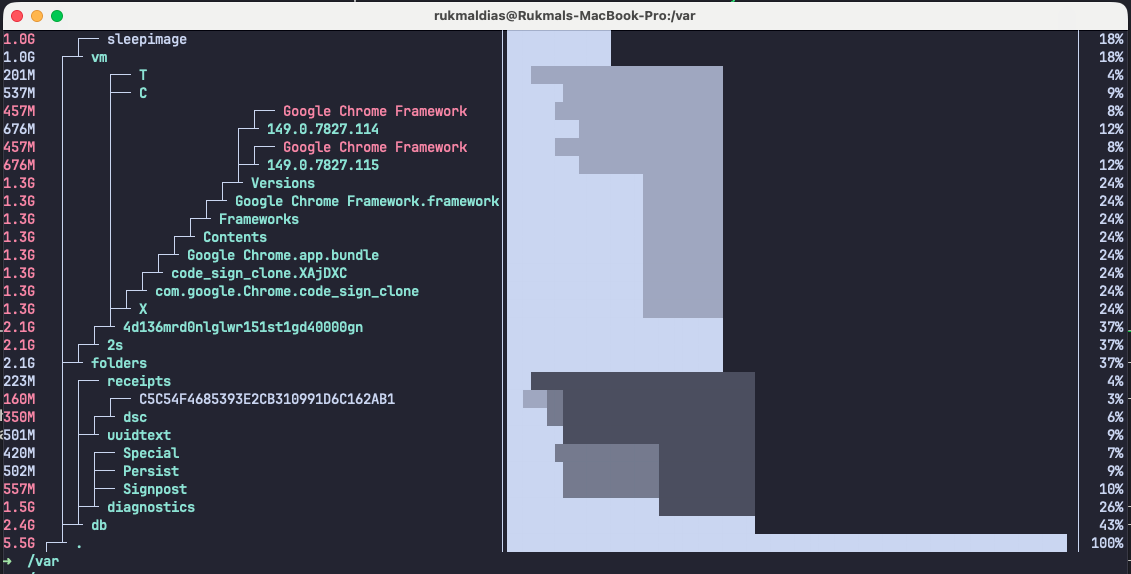
With du you would typically run du -sh ~/* | sort -rh | head and then recurse manually into each large directory — several rounds of commands to build the same picture that dust gives in one shot. The visual bar chart makes the proportions immediately readable without mentally converting numbers.
btop — System Monitoring
btop shows CPU, memory, disk, and network in a single TUI with real-time graphs. It responds to mouse clicks, lets you sort and filter processes, and is significantly more readable than top output.
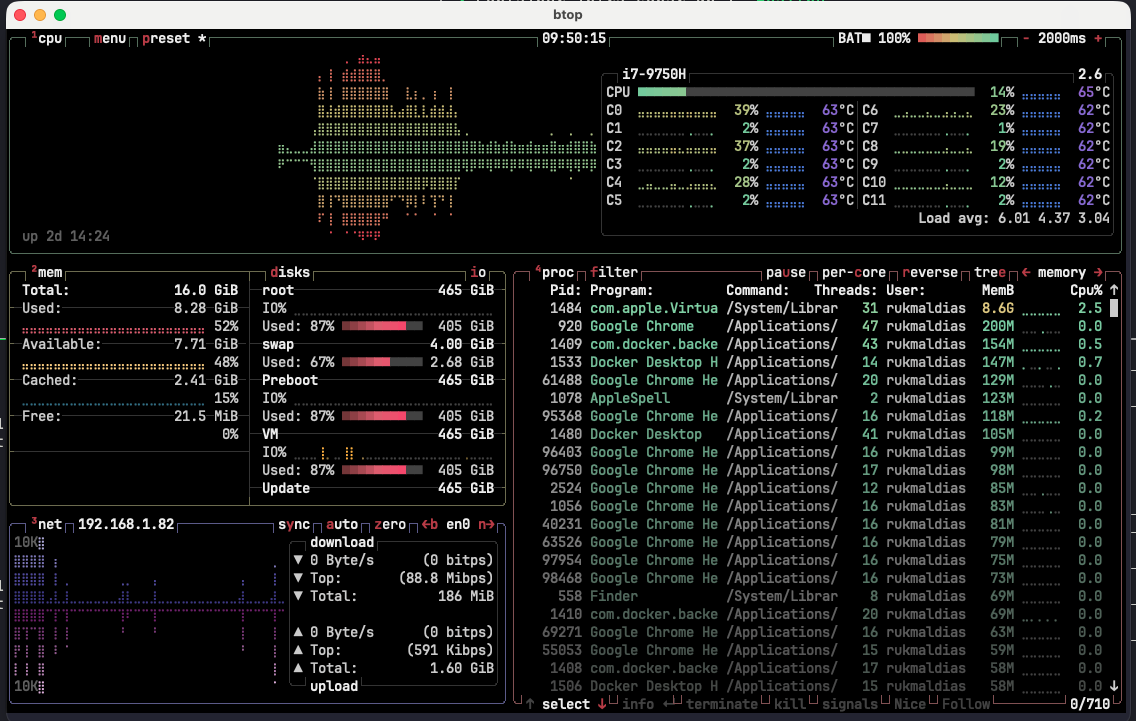
Use over top when: you want a live overview of the system interactively. For scripting — capturing CPU% of a specific process — ps or top -b are still the right tools.
These tools are independent. Adopting any one of them improves a specific workflow without requiring the others. But they reward combination — and after a short time using them, the originals feel like a step backwards.